Ambience Cutter — User Guide
Video Tutorials
Four short videos, one topic each. If you are starting from scratch, watch them in this order.
Interface: toggles, modes, zoom
The layout, the mode buttons and the zoom menu.
Clip Mode: the basics
Scan a reference clip, execute on your layers.
Clone Fades
Reproduce the fades of the scanned sequence.
Markers Mode
Place clips following memory locations or track markers.
1. Pro Tools Prerequisites
Ambience Cutter requires Pro Tools 2024.6 or later, and on macOS the minimum is Sonoma.
Pro Tools 2024.6 has a limitation with selections of clips that do not share the same start and end across multiple tracks: in that case the plugin will let you know that your Pro Tools version can’t perform this operation. Versions later than 2024.6 allow editing across multiple tracks at the same time, even when the clips don’t share the same length and end point.
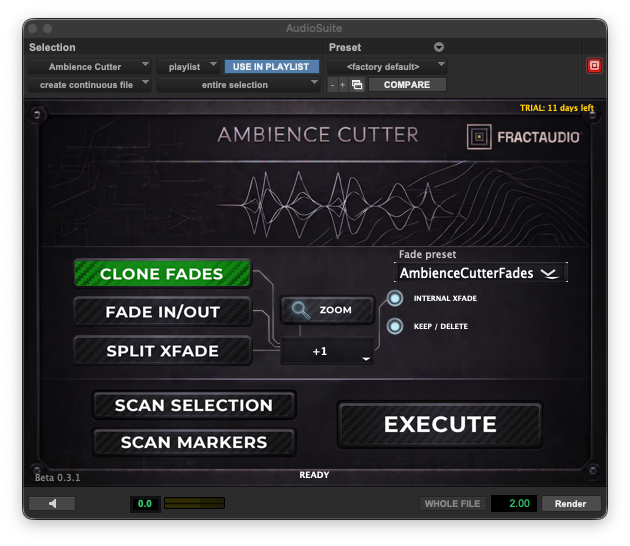
Ambience Cutter communicates directly with Pro Tools via PTSL. Before doing anything, make sure these two options are active in the Pro Tools Edit window toolbar:
- Link Timeline and Edit Selection
- Link Track and Edit Selection

2. The Basic Workflow
Ambience Cutter always works in two steps: SCAN first, then EXECUTE.
There is no shortcut — you must scan before every edit. The scan reads the session and stores a reference internally. Execute then uses that reference to perform the edit.
- SCAN → in Clips mode, the plugin reads clip positions, fade-ins, fade-outs, and crossfades. In Markers mode, it reads timeline memory locations and track markers simultaneously.
- EXECUTE → performs the edit using the stored scan data.
3. Two Engines: Clips Mode & Markers Mode
Ambience Cutter has two completely separate engines. They do not share scan data.
Scan Selection (Clips Mode)
The standard workflow. You select one or more clips on a track, SCAN, then EXECUTE. The plugin intelligently moves a portion of the clip you want to edit onto the first reference clip, then takes the next portion and places it on the second reference clip — continuing on, using the whole clip you selected for editing. If the clip you chose is too short to complete the edit, it starts over from the beginning, applying a crossfade.
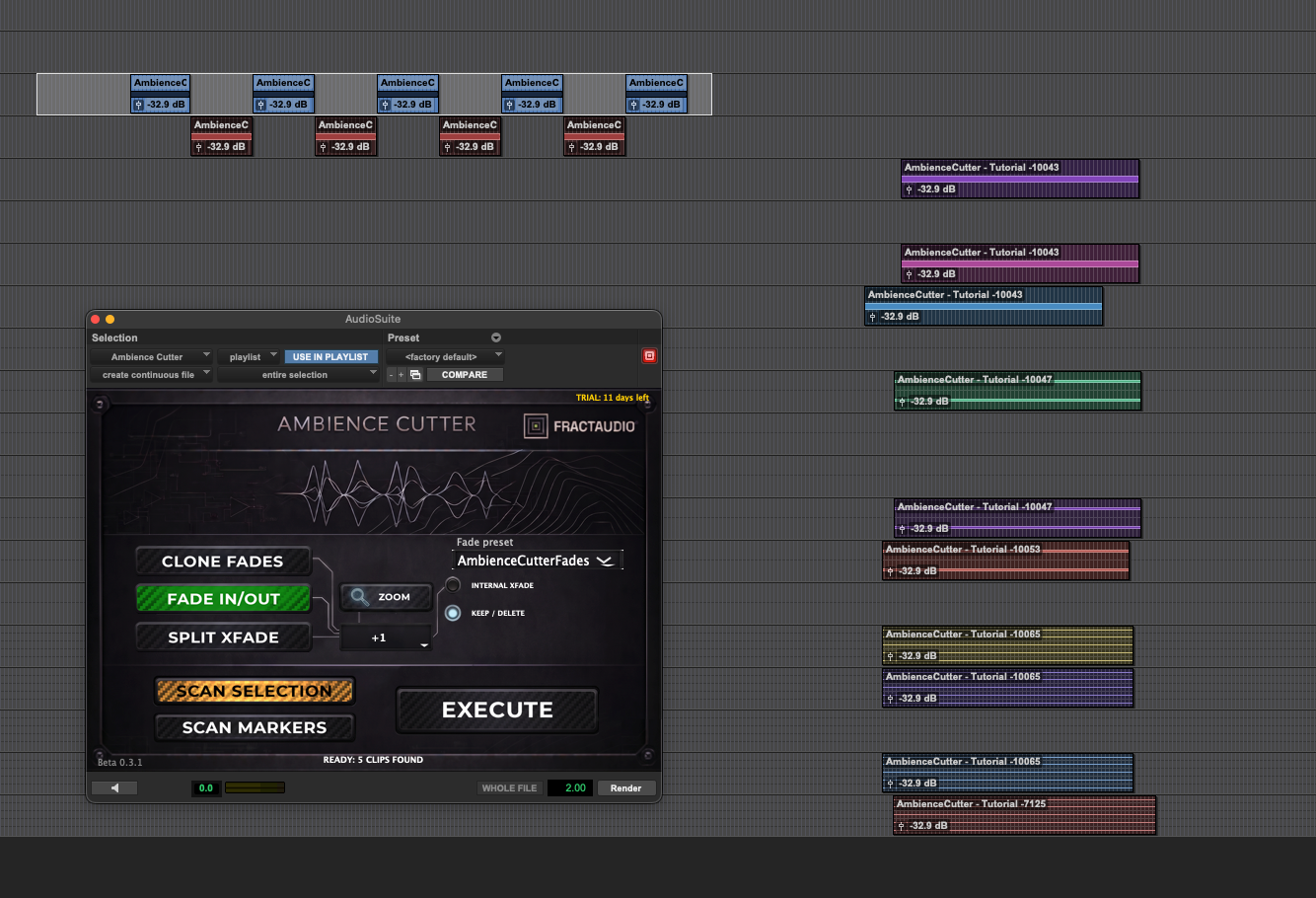
Workflow:
- Select the clips you want to edit in Pro Tools
- Press SCAN Selection → the plugin reads clip positions, fade-ins, fade-outs, and crossfades
- Choose the fade mode and the option toggles
- Press EXECUTE → the edit is performed
Scan Markers (Markers Mode)
Markers mode repositions clips to align with memory locations (markers) in your session. Useful when you want to anchor clips to specific points in the timeline.
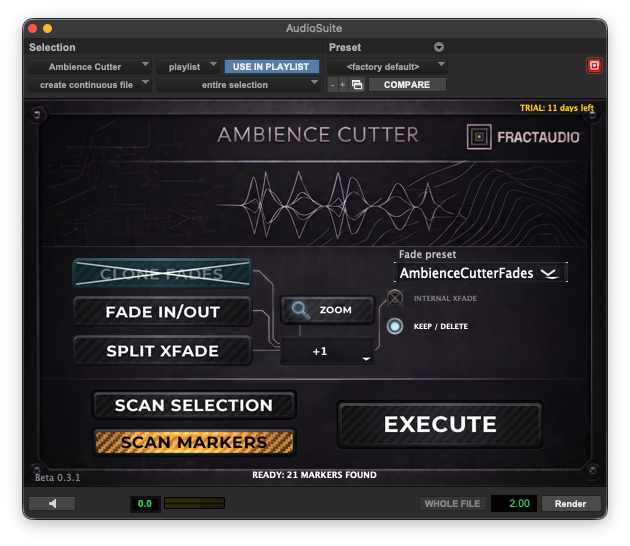
Workflow:
- Place markers in Pro Tools where you want clips to land
- Press SCAN → the plugin reads timeline memory locations and track markers simultaneously
- Make a selection containing your clips — this can span multiple tracks
- Press EXECUTE → clips are repositioned to align with the markers
Important: Markers mode pairs clips to markers in order — first clip to first marker, second clip to second marker, and so on. If you have more clips than markers, the extra clips are left untouched. Pro Tools 2024.6 can’t do this with clips that don’t share the same position and length on the timeline; if you use that version, run one Execute at a time. Markers mode currently reads both timeline memory locations and per-track markers.
5. Fade Modes
Three modes:
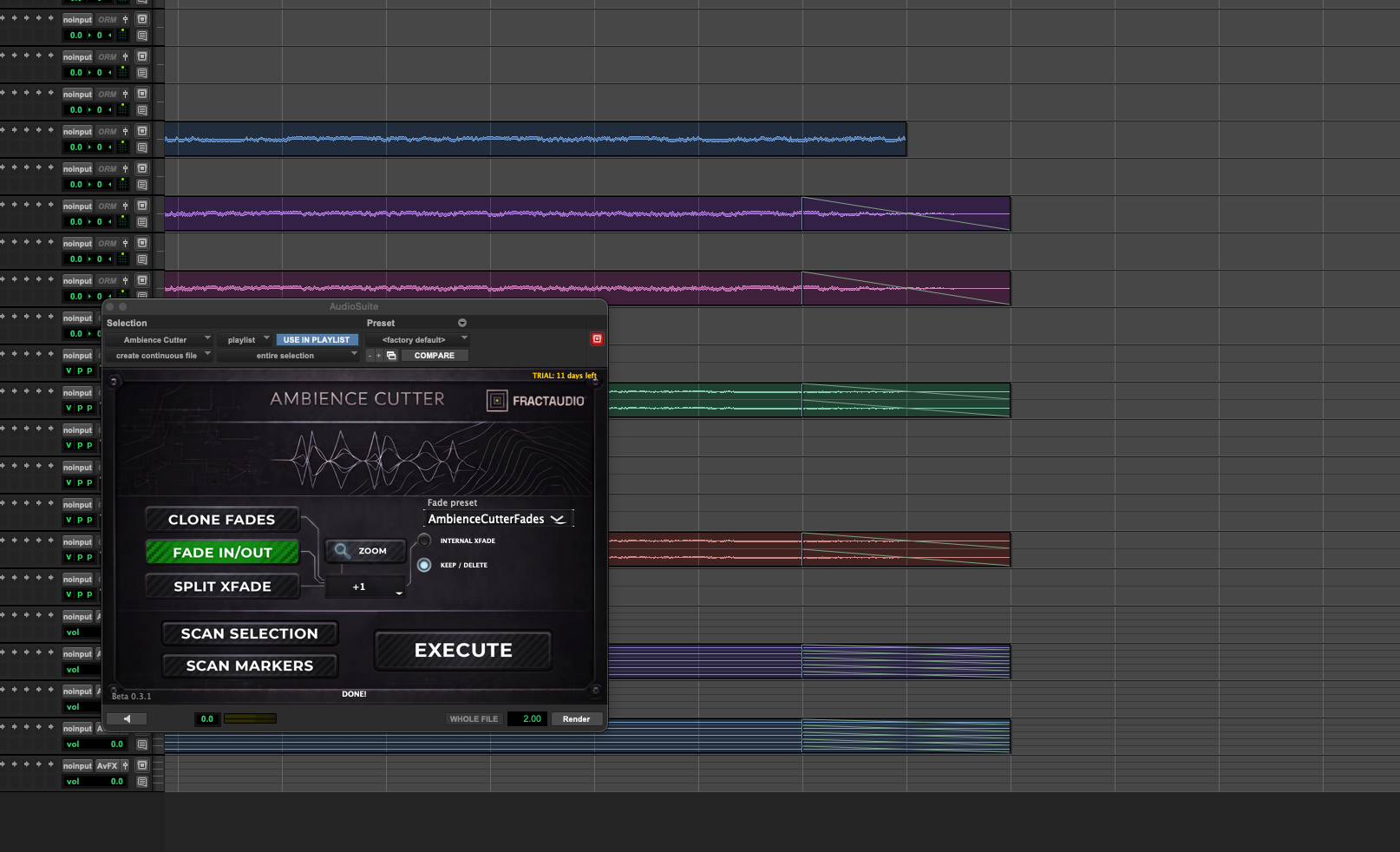
- Clone Fades — Applies the same fades present on the reference clips.
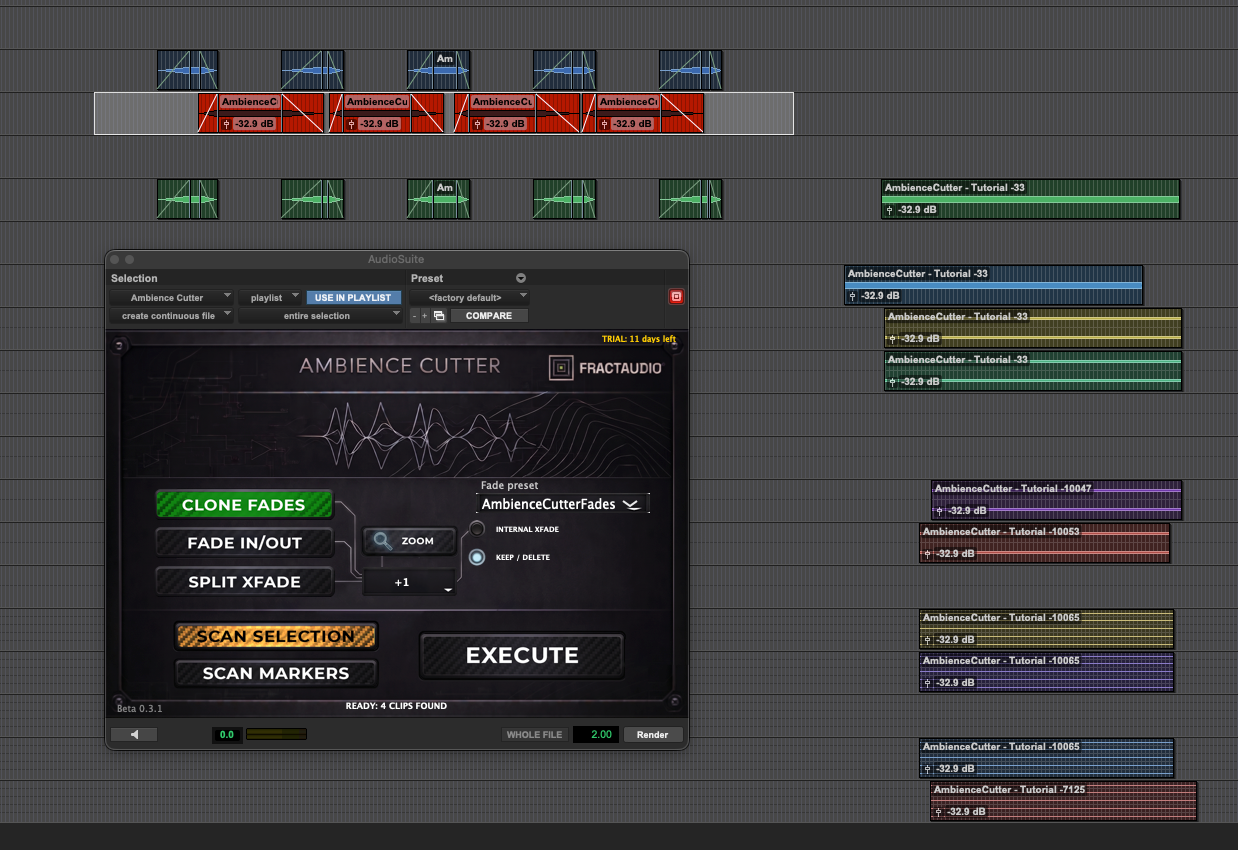
- Fade In/Out — In Fade In/Out mode, the engine extends each clip start and end compared to the reference clips and applies a fade in and fade out. The length of the extension beyond the reference clip cut and the relative fade length is decided by the frame selector.
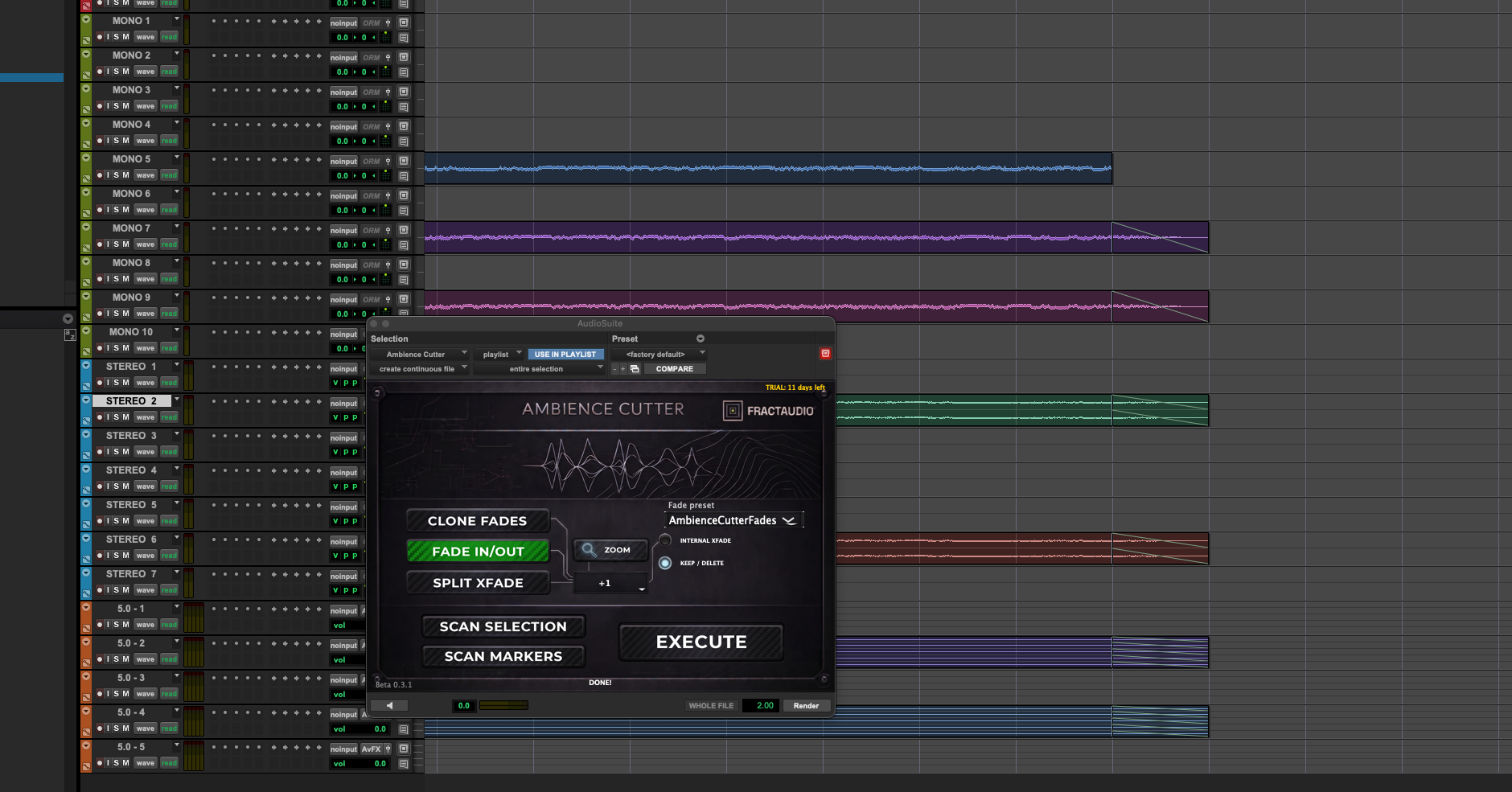
- Split Xfade — places a crossfade centered right on the cut.
6. Internal Crossfade
In the fade modes, this toggle tells the plugin to reproduce any internal fades found inside the reference clips. With it off, those internal fades are ignored.
7. Frame Selector (+1 to +5 frames)
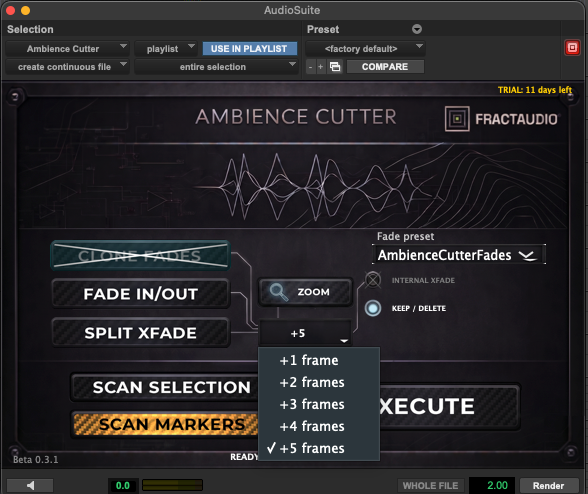
The frame selector opens a menu to choose how many frames to add at each edit point (1, 2, 3, 4, or 5). When active:
8. Keep / Delete the Source Clip
After Execute, by default the clip you selected for editing — the source reference used by the engine to fill the gaps — is removed from the timeline. You can change this with the Keep / Delete toggle:
- Delete (default) — the source clip is removed after the edit is complete
- Keep — the source clip remains in the timeline
Use Keep when you want to compare the result with the original, or keep the option to undo cleanly.
10. UI Zoom
The plugin UI can be resized using the zoom control. Supported levels: 25%, 50%, 75%, 100%. All controls remain fully functional at any zoom level.
11. Scan Markers + Split Xfade / Fade In/Out
If you need to alternate between two layers, scan the selection from the first to the last marker and run the edit; then scan the selection starting from the second marker and run the edit again on another selection to edit. This lets you use Markers mode together with the Split Xfade and Fade In/Out modes without needing reference clips — relying solely on markers.
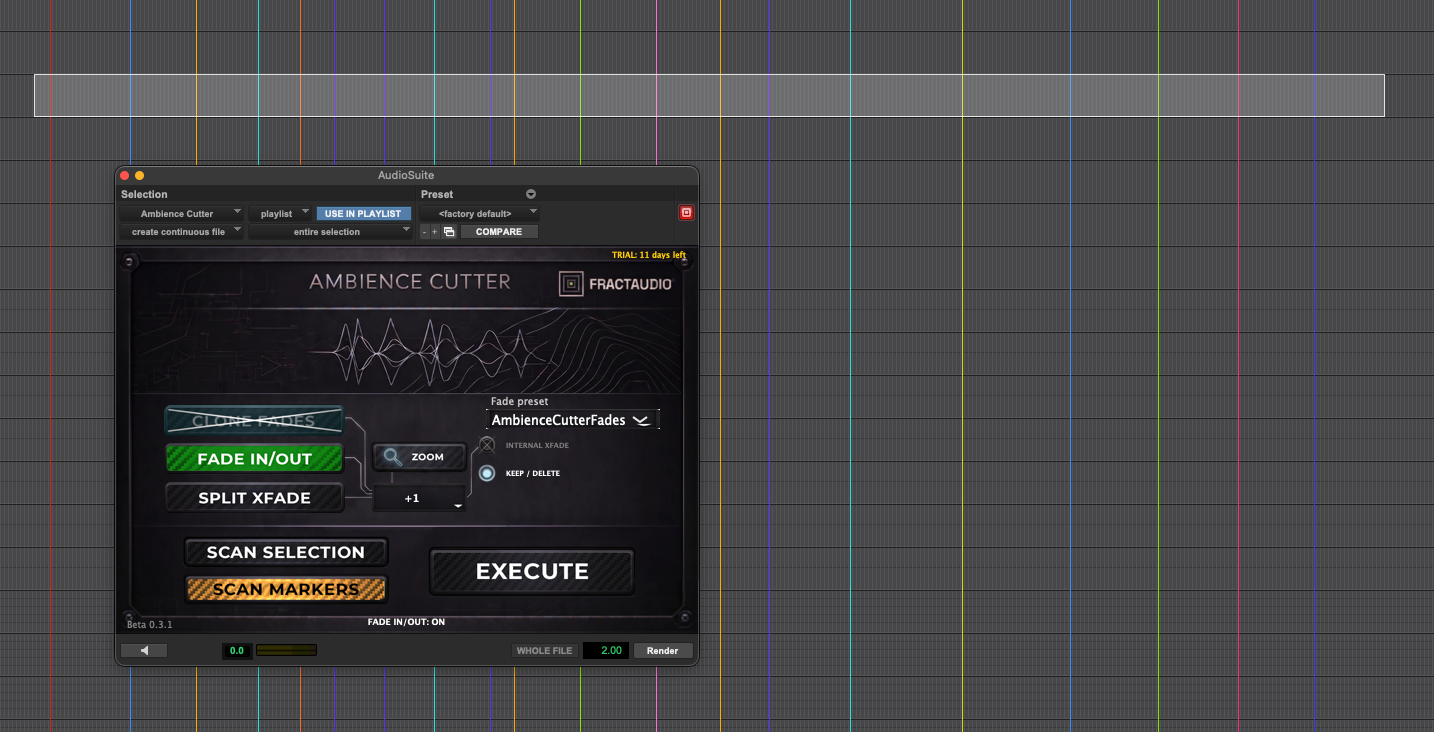
Scanning markers automatically enters Markers mode; with no other features enabled, it works exactly as described above. But you can make a selection across several tracks with clips that are not pre-edited — which is far more convenient.
If you activate Split Xfade or Fade In/Out mode after scanning the markers, the plugin behaves as if it had a sequence of reference clips, treating:
- From the 1st marker to the 2nd = a clip
- Empty timeline until the 3rd marker
- From the 3rd marker to the 4th = a clip
- From the 4th marker to the 5th = empty timeline (and so on)
So, to create an alternating edit across two tracks, on the second editing pass you scan the markers starting from the second marker.
12. Common Mistakes
- “0 clips found” even though I have clips selected
→ Check that both Link Timeline and Link Track and Edit Selection are active in Pro Tools. If either is OFF, the plugin warns you and stops. - “Scan clips first” when I press Execute
→ You pressed Execute without scanning first, or you switched mode after scanning. Scan again in the correct mode. - Fades Clone is not replicating my fades
→ Make sure your clips already have fades before pressing SCAN. If you add fades after scanning, scan again. - Markers mode says “No clips selected”
→ Make sure you have a clip selected on the track, not just a timeline selection with no track selected. Both Link options must be active.
13. Recommended Workflow
- Set both Link options ON in Pro Tools
- Choose your mode (Clips or Markers)
- Choose your settings (Add Frames, Fades Clone, Keep/Delete, Crossfade)
- Make your selection in Pro Tools
- Press SCAN
- Press EXECUTE
14. Practical Example: Multi-track Layers
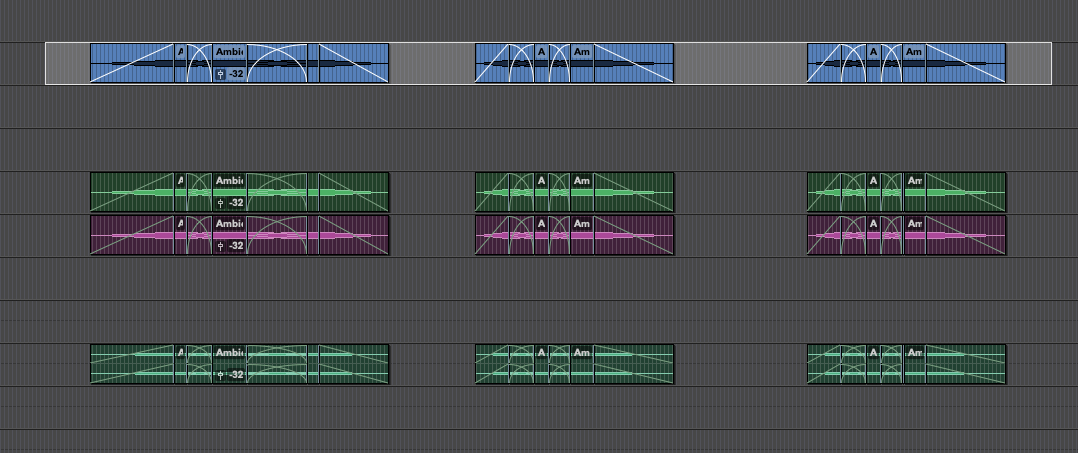
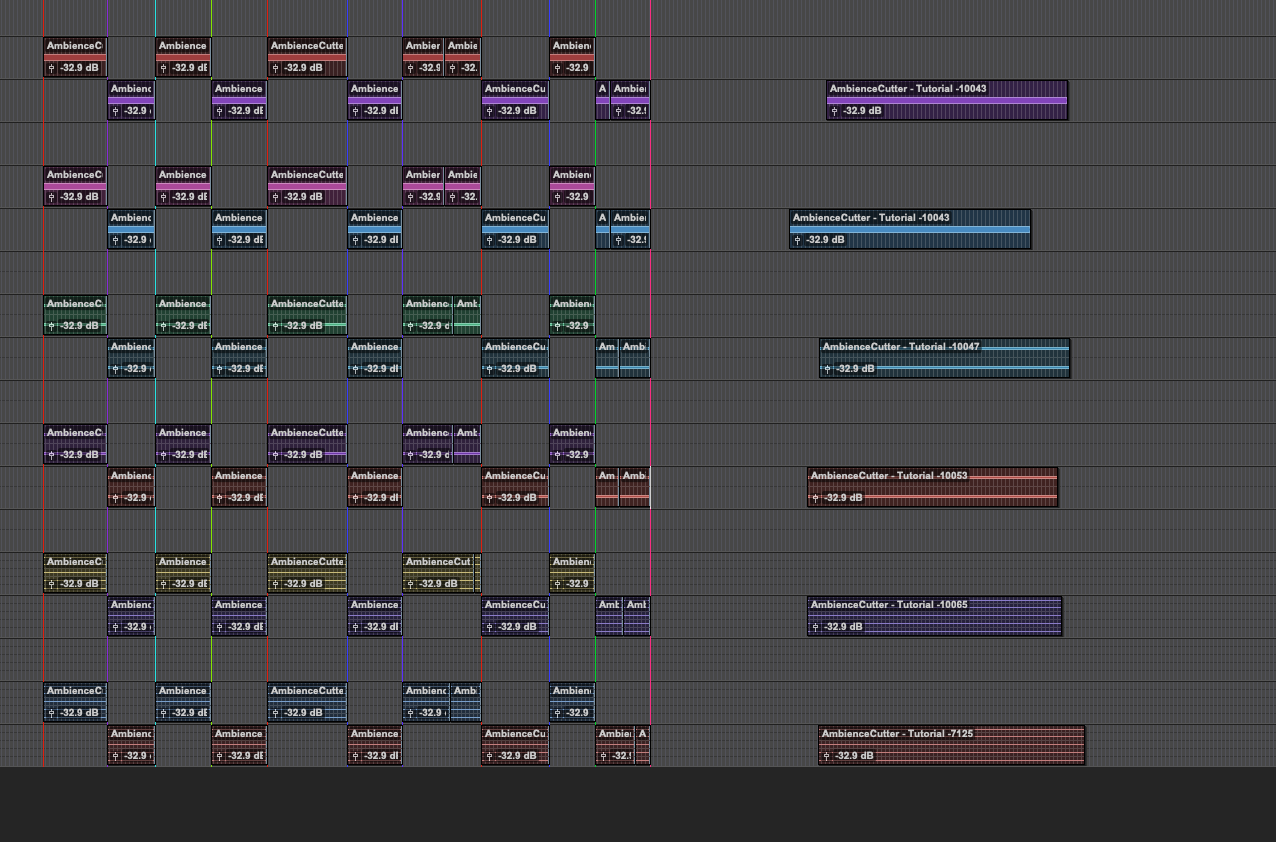
This example shows how to add new layers to an alternating sequence of mono clips that follow picture cuts. Because this is an addition to an existing edit, the reference mono clips already have one-frame fades.
The Setup: Our reference is a clip, split and alternated across two tracks to match picture cuts and sound perspectives (e.g., Track 1 for the “close-up” shots, Track 2 for the “wide” shots). The clips already have fades. We want to add new stereo layers to this sequence.
Step 1 — Prep the new files. Choose long audio files suitable for the scene and place them on the timeline, not overlapping the reference selection. Since our reference alternates between two tracks, duplicate your new stereo tracks so you have 4 target tracks in total (Tracks 1 & 2 for the first stereo file, Tracks 3 & 4 for the second).
Step 2 — Scan the first track. Activate Clone Fades. Select the edited clips on the first MONO track and press SCAN.
Step 3 — Select targets and execute. Select the clips you want to edit (the new layers matching the first mono track’s positions). Choose how you want the fades and frame extensions applied relative to the cuts. Press EXECUTE → the cuts and fades from the first mono track are cloned onto both stereo layers.
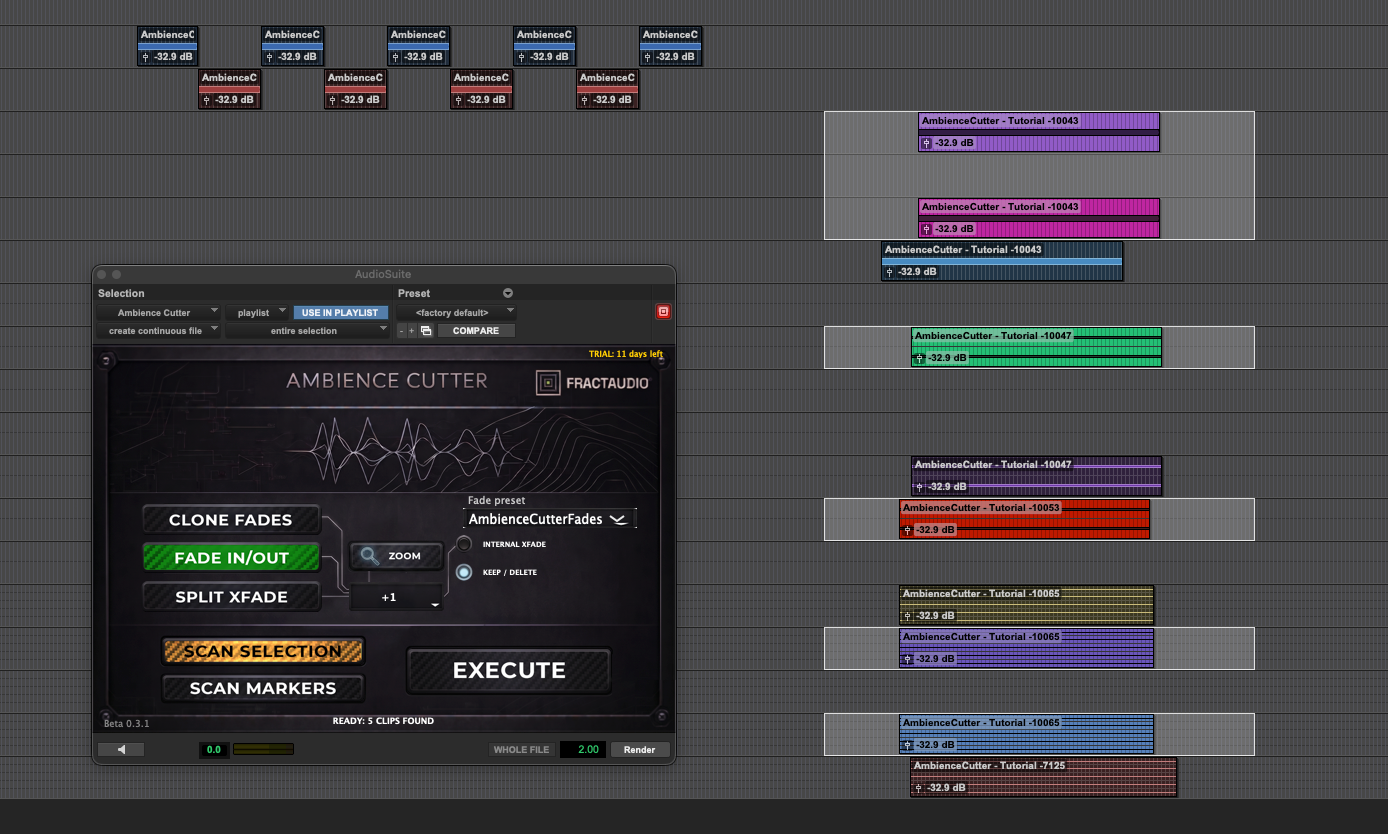
Step 4 — Scan the second track. Make a selection on the second reference (MONO) track, so you have a new reference with new cuts and fades, and press SCAN.
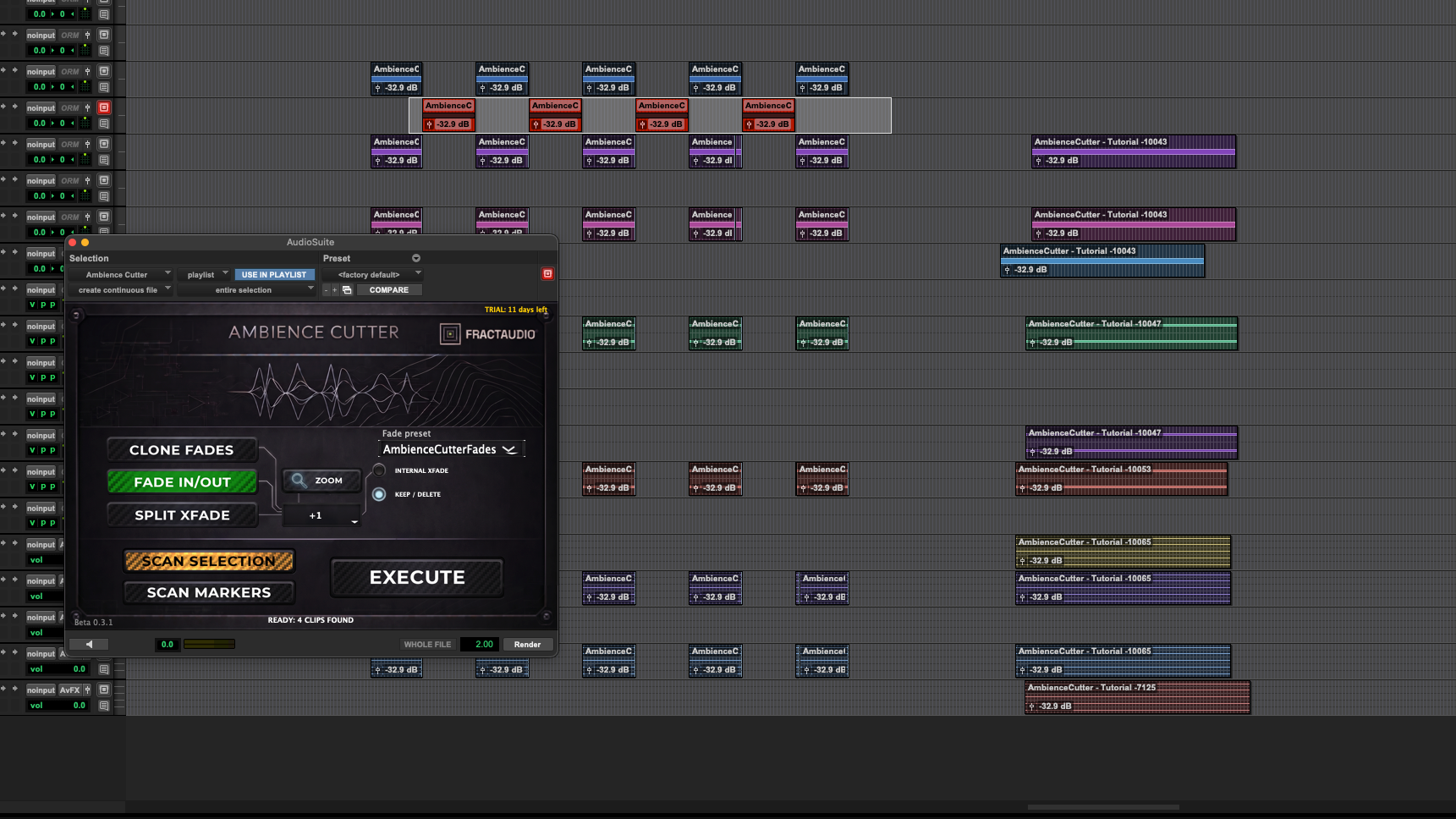
Step 5 — Select targets and execute again. Select the clips to edit on the new tracks (matching the second mono track’s positions) and press EXECUTE.
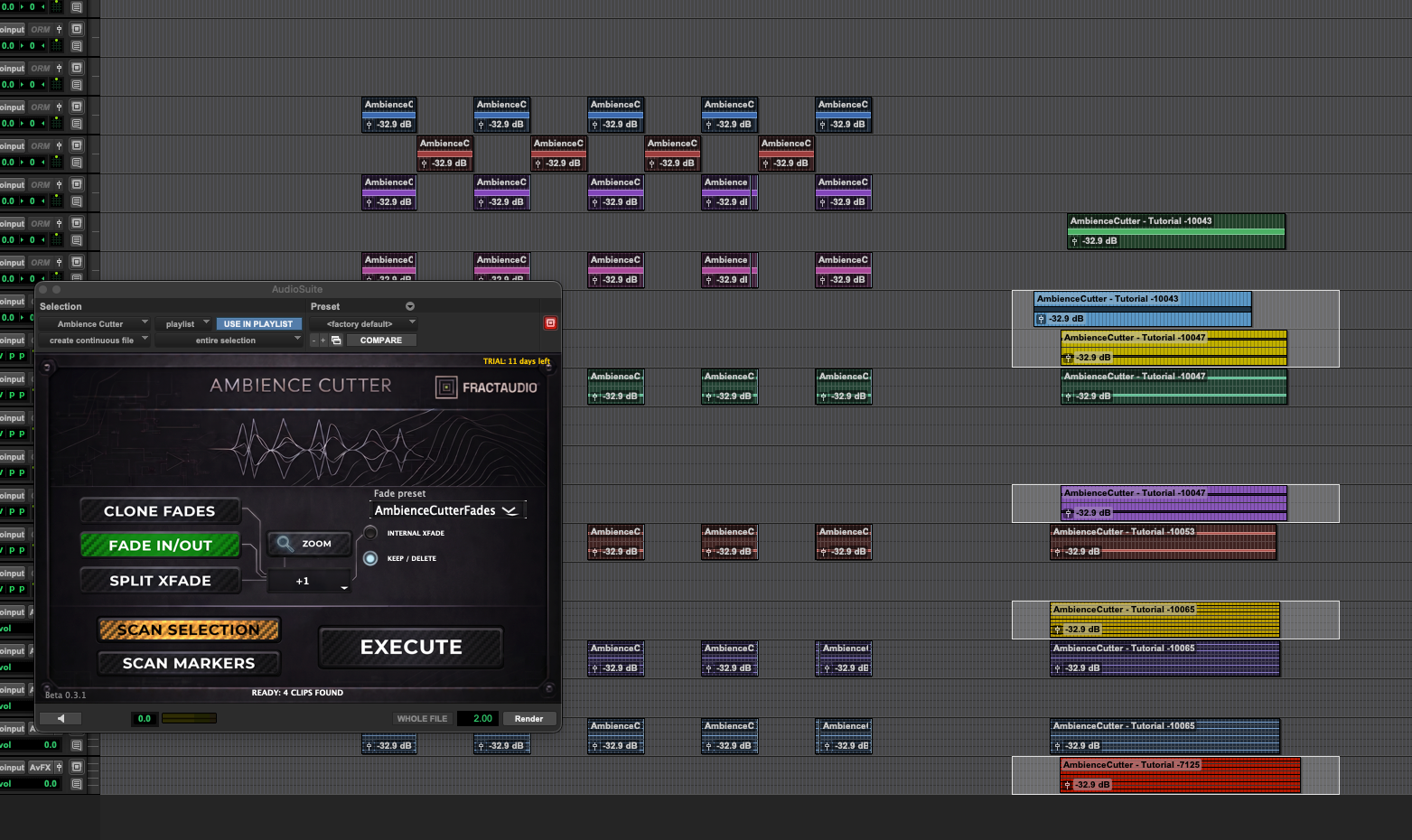
The Result: With just two scans and two executes, you replicate all the cuts and fades of a complex alternating sequence. By properly prepping your source files, you can add as many layers as you want at once — multi-channel or otherwise.
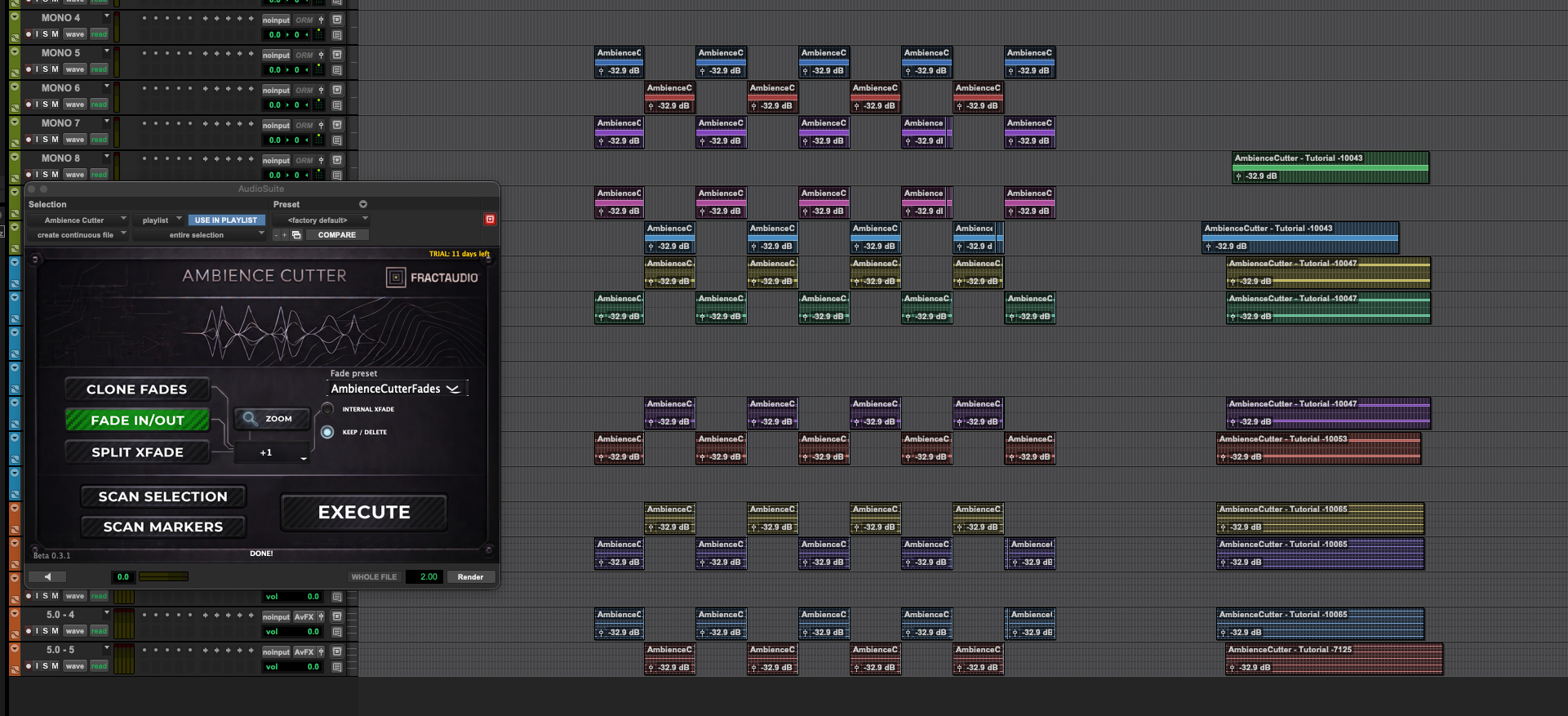
Practical example of multi track layers using markers
The same is possible with markers instead of reference clips.
1. Scan a selection containing markers,
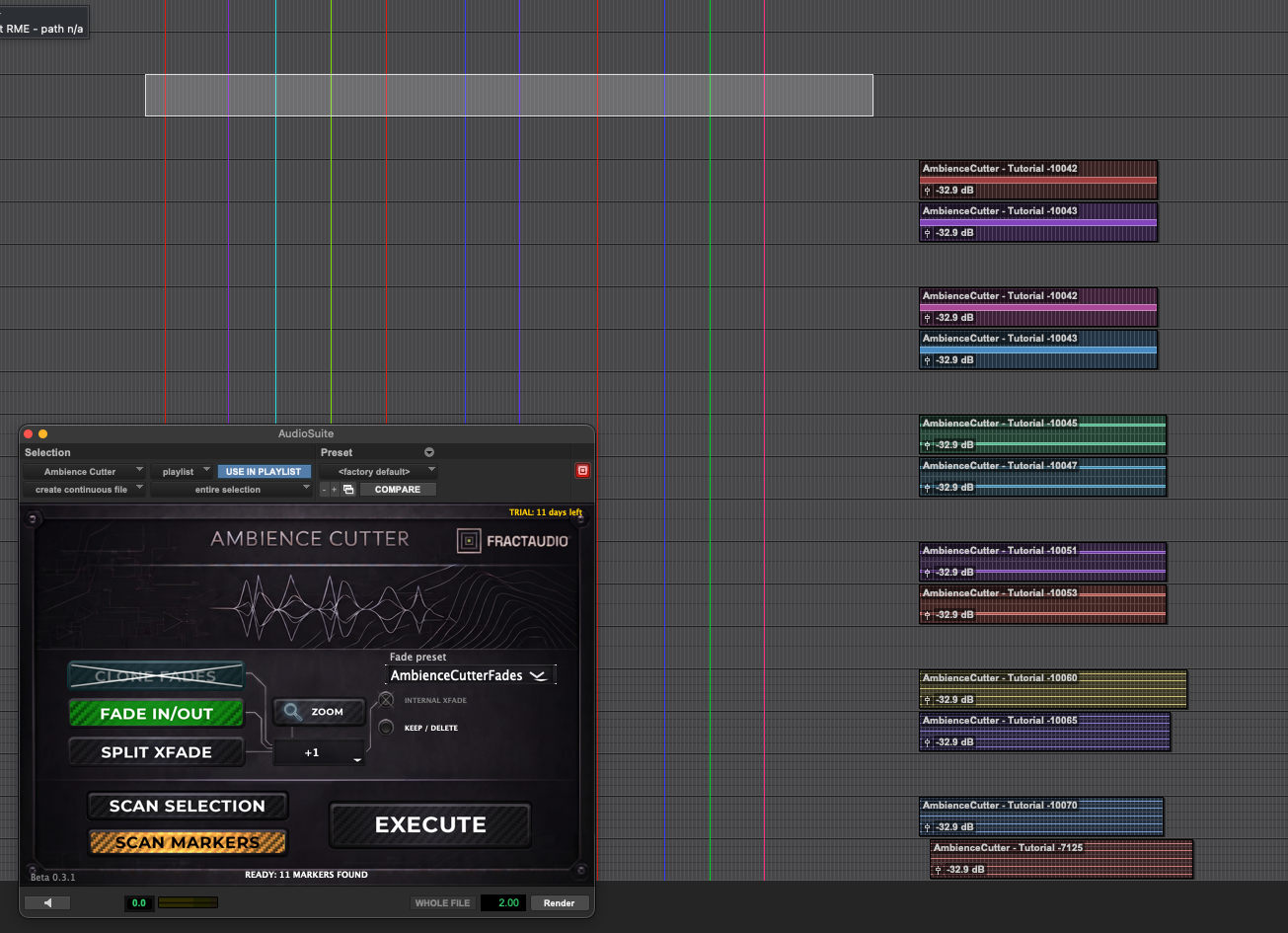
2. Enable a fade mode, select the clip to edit.
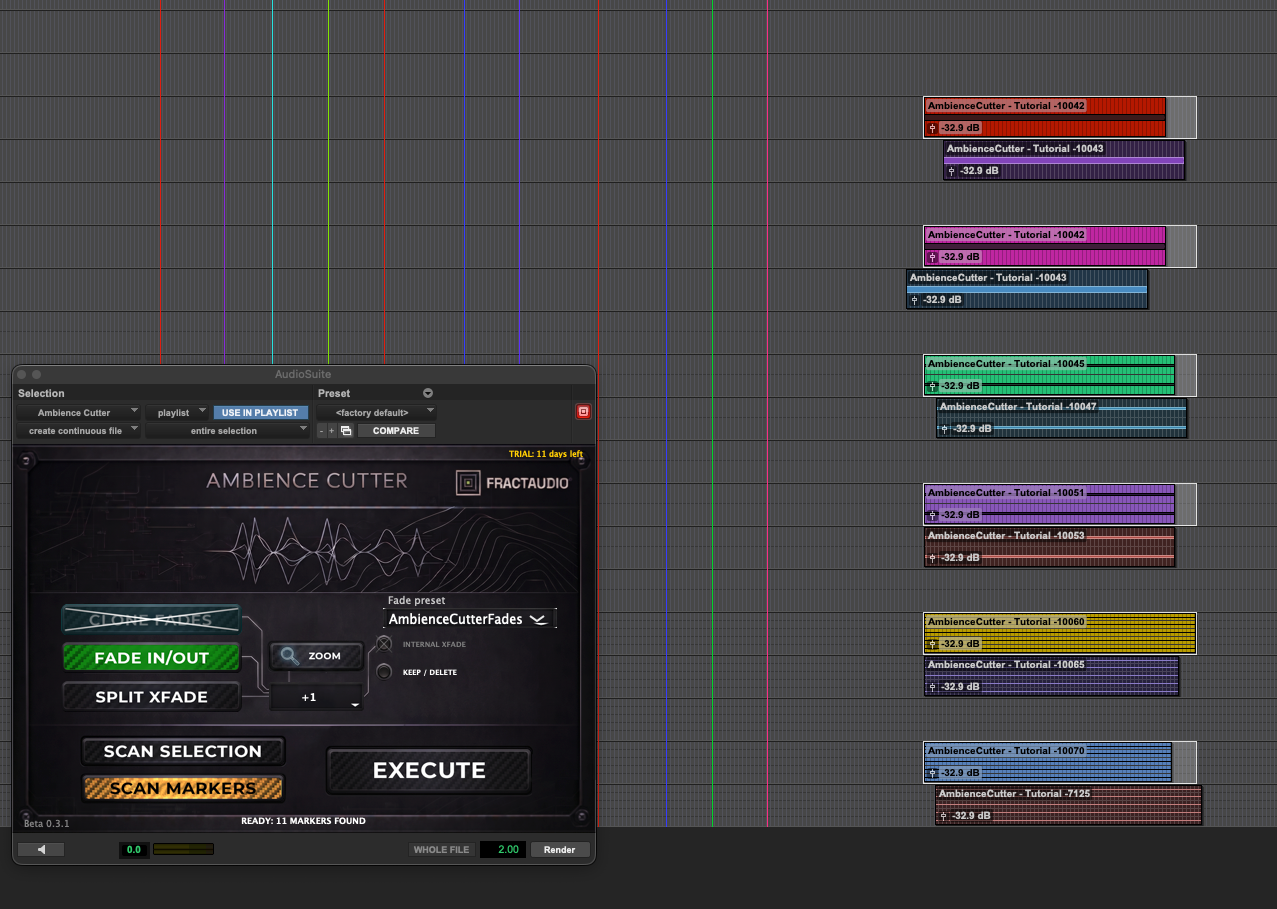
3. EXECUTE. The plugin treats the 1st→2nd marker as a reference clip, empty timeline until the 3rd, 3rd→4th as a clip, and so on.
4. To alternate across two tracks, on the second pass scan the markers starting from the second marker.
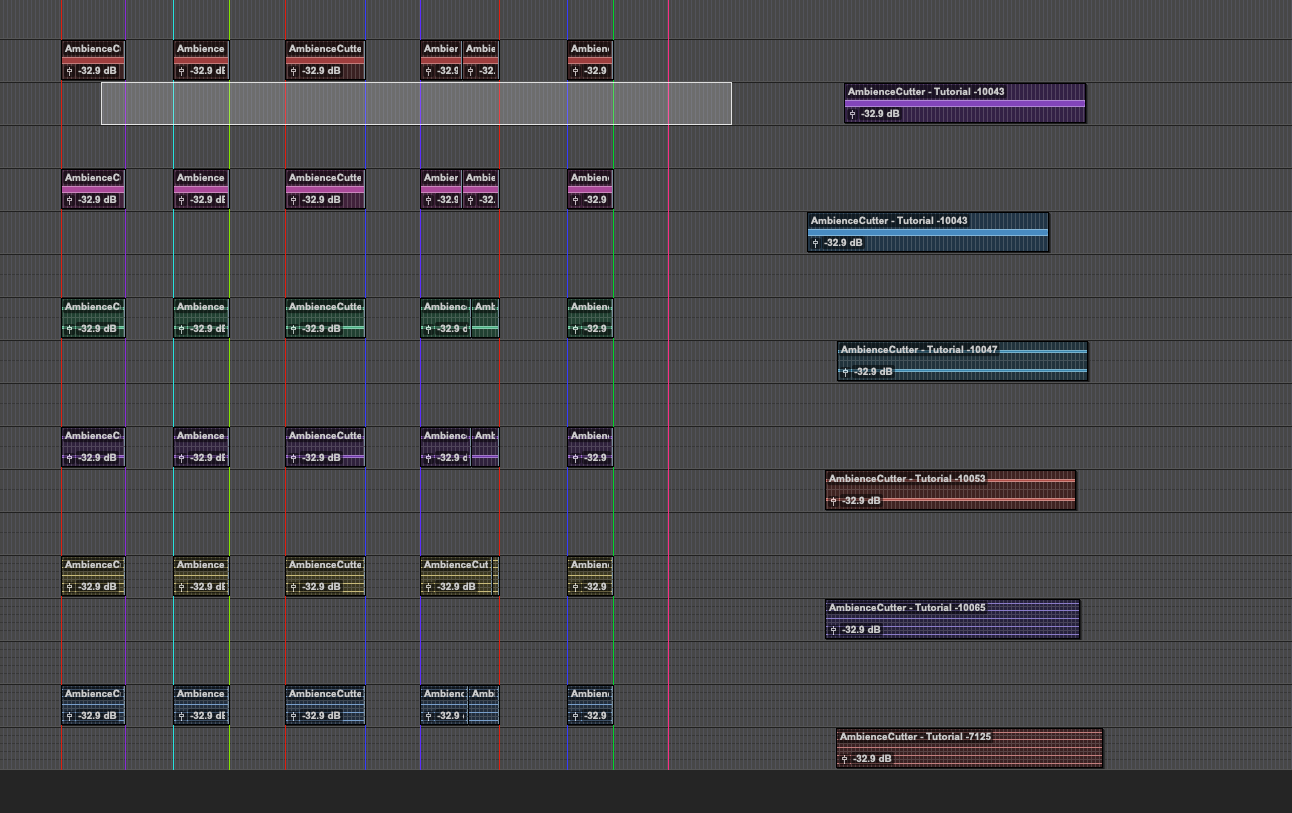
5. PRESS EXECUTE AND WAIT FOR THE EDIT TO FINISH.
For any help or information, please contact support@fractaudio.com